Friday, October 1, 2010

HOME
Please chose your topic.
.Windows (PC)
---------------------------------------------------------------------------------------
---------------------------------------------------------------------------------------- 
->Security (virus,worms and torgen removal).

----------------------------------------------------------------------------------------

->Tweaks.
----------------------------------------------------------------------------------------


->Precautions
----------------------------------------------------------------------------------------


->General Info /Tips
----------------------------------------------------------------------------------------


.Windows Mobile (smart phone and Pocket pc )
------------------------------------------------------------------------------------------------


.Games
------------------------------------------------------------------------------------------------


.
Downloads
------------------------------------------------------------------------------------------------


.
About Me
------------------------------------------------------------------------------------------------
Denny Philip

I am a developer at RDT Dev Team India, Trivandrum.
I thought of sharing knowledge in computers by posting it here.


Use a USB - drive for installing Windows.


Make format the drive you wish to make Boo table (on vista and Windows 7 you will need administrative rights to complete this step)
    1. plug the USB device (pen-drive/Thumb drive) into any USB port on your PC.
    2. if windows pops up a window asking you what you want to do (auto play menu), close it
    3. Right click on you computer (my computer) select Manage.
    4. On the Computer management window click on "Disk Management" (Under Storage - if you don't see Disk management click on storage first).
    5. (Warning this will erase all data on the drive - so back up / copy all contents that you require to a folder in your computer) . Now from the listed drives select your USB drive then right click on it and select Format 
    6. If the disk was only ready an active partition (boot-able) it will show you a warning select yes
    7. Make sure you have selected NTFS as the file system
    8. Press OK. A warning Screen will appear Select OK on that window too.
    9. The formatting process starts now.
    10. Wait for the formatting to complete
    11. If your drive doesn't say (Active, Primary Partition) that's OK as will be making it active on the next steep
  1. Make You USB Drive partition Active.
    1. Go to Start Button -> All programs -> Command Prompt
    2. Right Click on Command Prompt and select Run as Administrator ( The step will not work if are not running command prompt as administrator)
      • on the warning screen click Yes
    3. on the Command prompt window type 
      1. DISKPART

      •  
    4. Now type
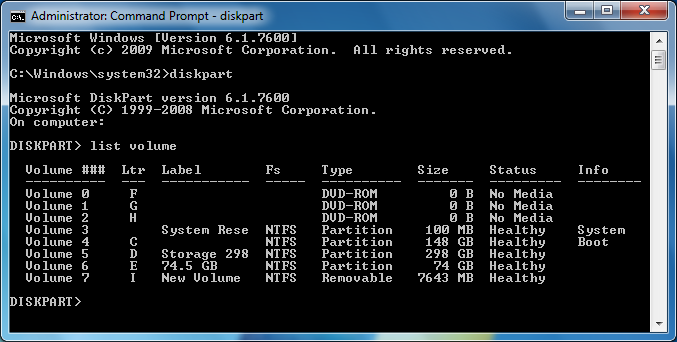
      1. list volume
      • In my case the drive we want to modify is the Volume 7 (Size 7643 MB) 
      • from the list that appears make sure you note down the Volume of the drive that you want to modify
    5. Now type
      1.  Select Volume 7   
      2. For me it is Volume 7 please replace 7 wit the volume number for your USB Drive
      3. e.g.Select Volume 3 if your USB drive is volume number is 3
    6. Now to make the partition active type
      1. active
      • close the window when it is complete.
      • congratulations now you have made your drive's partition active .. wait its not over yet now you have to make it compatible with modern boot process. so continue reading.
  2. Make USB BOOTMGR compatible. For this step you will need a Windows vista or windows 7 DVD 
    1. Open you DVD drive and insert your windows installation Disk into it
    2. Close install screen if it appears 
    3. open Computer (My computer)
    4. Right click on your DVD drive and select Open
    5. go to boot folder
    6. Inside boot folder you will can see a file called bootsect or if you have file extensions visible like i do bootsect.exe
    7. copy bootsect to system32 folder
    8. Right click and  empty space in system32 folder and select paste (Sytem32 folder can be reached by simply pasting c:\windows\system32\ in the address bar of explorer)
      Click continue - provide administrative rights if you are not working as administrator
    9. Open Command prompt as Administrator again like you did before (if do not remember refer t0 step 2 sub step 1 and 2 - Do not type DISKPART or repeat any step till this )
    10. type
      1. bootsect /nt60 I:
      2. For me the drive's letter is I: - replace I: with your USB Drive's Letter
      3. for clarity i am going to replace spaces with <space> please do not type <space> you are supposed to press the space bar on your key board when you see <space>
      4. bootsect<space>/nt60<space>I:
    11. wait for it to complete
      1. close the windows when it is complete.
  3. Copy windows installer files to the USB drive ( You will need the windows installation Drive )
    1. Open my computer (Computer)
    2. right click on the windows installation drive and select open
    3. Make sure you will are able to see hidden files and folders

    1. select all files by clicking <Ctrl> button and <A> button together
    2. Right click on a file and select copy all the files and paste it into the USB drives Root Folder (The place where you are once you double click on the drive e.g: I:)
  • wait for the copying to complete
  • Congratulations Now you have created a boot-able USB windows installation drive
  • There is one other thing that you need to be aware of to make this work on most systems. Read  on to find what it is.
4. change the bios setting of the PC on which you wish to use the USB drive to install windows


  1. Restart / Start your PC and press the key that takes you to your CMOS setup
    1. Some systems it <Del> key on your keyboard some systems it <F2> in my case its <F2>
  2. Once inside Bios find the boot order of your Computer
  3. Change it so that the system takes the USB drive as the first boot device.
  • from the list select your USB drive. if you forgot to plugin plug the drive in then restart system and enter BIOS / CMOS setting by hitting <Del> or <F2> 
  • On most systems you can use + or - to move the selected drive up or down the list
  • Save changes
Press Y or Yes on the confirmation screen restart

Now the System Should boot into your USB drive and start installation.
Please leave a comment in case of clarifications.

--------------------------------------Best Of Luck --------------------------------------

Tuesday, October 21, 2008

Tuesday, January 15, 2008

Unable to delete file OR FOLDER - try Unlocker

Now and then we come across a file that just refuse to be deleted or even renamed or moved... Windows says "It is used by another person or program close any program that might be using
the file and try again "


Now that is annoying ... when u know u r the only person who uses it and doesn't want it any more.

The small but brilliant software unlocker can help you and it doesn't cost a penny ... it is a freeware.

pretty neat all u have to do is to download the small software (191 kb) from
http://ccollomb.free.fr/unlocker/#download
and install it.
(direct download of file from http://ccollomb.free.fr/unlocker/unlocker1.8.5.exe
but it is better to visit the site may be a newer version is out )

How to delete the file / Folder
------------------------------------------
(These instructions can be found at the author's page )

1) Download and install Unlocker from http://ccollomb.free.fr/unlocker/#download

2) Once installed Right click the file or folder u want to delete.

3) From the menu that appears select Unlocker


4) If it is locked you will get a window that list the softwares / processes that use the file .
select delete /rename /move from the drop down menu (default is No action) then select Unlock
or Unlock all. once done press Quit to exit the program..


if the file is NOT locked u will get a window like this


select delete / rename / move from the drop down list and select ok

5) if it it successful u will get a small window like this select ok to close the window


This software is especially useful if u r trying to remove malware file..

Word of caution : PLEASE DO NOT DELETE SYSTEM FILES USING THIS AS IT MIGHT
CORRUPT UR SYSTEM AND RENDER IT USELESS. ONLY DELETE FILES THAT U R SURE
U DON'T WANT ANY MORE.

Friday, January 11, 2008

DOWNLOADS

Disclaimer
Welcome to the downloads page.
------------------------------------------------------------------------------------------------

The files linked here are part of my personal archive and some of them
are not my creations. I here by give all due credits to their shear genius
and hard work. I have kept them here so that it might serve as a virus free
backup to download when the need arises. Me nor the authors of these files
cannot be held responsible for the use or mis use of these files.
thank you for understanding and using these files responsibly.
------------------------------------------------------------------------------------------------


1) AIMFIX (anti malware)
2) CAV-0.91 (anti malware)
3) KLWK (anti malware)


4) Hacked taskmanager (when disabled)
5) 'task manager disabled' - removal script

6) Hacked regedit (when disabled)
7) 'registry editing disabled' removal script


8) exe_regfix (fixes the exe unlinking problem after removing malware)
9) UNHOOKEXE (fixes the exe unlinking problem after removing malware)


10) process explorer ( a better option for taskmanger)


11) u.bat(unhides hidden files)


12) shutdown (fast one click shutdown of windows - the file name is ..bat)


13) windows mobile wireless modem driver (HTC USB)


U r also advised to search for a newer possibly better version online.
Try a Google search from with in this page.

Monday, October 8, 2007

Shutdown commands in windows

Shutdown commands in windows
--------------------------------------
Open command prompt (start >> run - type cmd press enter)
type

shutdown /s

shuts down the system
----------------------------------------

type

shutdown /r

shutdown and restart the sytem


----------------------------------------

type

shutdown -a

Aborts a system shutdown (very useful if u accidentally or for virus removal
purpose endtasked system critical processes like svchost.exe)

----------------------------------------

type

shutdown /s /f

shutdown the system and closes any running applications

(quick shutdown)
here is file when double clicked will shutdown windows (very fast)
http://www.mediafire.com/?d4znz2vmmgd
_______________________________________________________

Friday, October 5, 2007

ISDLL.DLL.VBS ... The worm that spreads thru ur pendrive

Is ur system slow and nothing seems to happen when u double click ur c drive or any other drive except ur cd rom drive.. and even if it opens it opens in a new window..

bad new for u..

Ur system is infected and the culprit is a file name ISDLL.DLL.VBS
This is a script file virus.

How did it get tinside ur system
-------------------------------------
Via ur pendrive / mobile

but who ran the script in the first place?
------------------------------------------
sadly the answer is U urself did it.

How it acts
----------------
There are a lot of worms today that spread using pendrives - one of the most famous one is
win32/ahkheap.a (famous bcoz it shows the user something is wrong as they cannot browse certain sites like orkut,youtube etc.. and prevents firefox from opening so users are aware of their system's problem.

This one spreads the same way when a pen drive is plugged into a infected system the virus
makes a copy of itself inside the pendive in the recycler folder as the file autorun.exe
(if u check the properties it has microsoft as the company name with arabic written or some boxes appear after microsoft [if arabic language pack is not installed] and the size is around 32kb or so).

How to remove it
-----------------------

step1: Bring up ur task manager by pressing these buttons together Ctrl + Shift + Esc .
or use process explorer from microsoft sysinternals
step 2: Now stop all instances of wscipt.exe from the process tab (right click on the image name wscript.exe and select stop process tree) make sure u have stopped all wscript.exe.
step2a: Now select folder options and make sure that u can see all hidden and protecte operating system files (detailed instructions available on this topic here
http://dennyphilip.blogspot.com/2007/08/show-hidden-files-and-folders.html)
if u cannot see ur folder options at all (where did the folder options go??) follow instructions in this page and come back to this page
http://dennyphilip.blogspot.com/2007/08/no-folder-options.html)

step 3: Once this is done open my computer and after it is open press these keys together Ctrl+F to bring the search pane up on ur "My computer".
now make sure u have checked hidden files,protected operating system files,search system files (all the three in arow should be checked).
step 4: search for isdll..dll.vbs or isdll*.* by typing any one of these in the search bar.
wait for all the results to appear and select the results by pressing Ctrl + A or cleck and drag a selection box around the results delete all instances of isdll.dll.vbs files by pressing shift +Del buttons together if u r unable to see any file redo step2a agian.
if are denied access to the file redo step2
even after doing it right if u cant see the files open file location by the right click menu on the file
then follow instructions given here.
http://dennyphilip.blogspot.com/2007/08/manualy-unhide-files.html
then search for autorun.exe inside the recycler folder in all removable media including ur pendrives and mobile delete it.

step4: Now go the search bar and search for autorun.inf in all ur harddisks(say c:,D:,E: etc)and ur pendive or any other devices connected to ur pc . delete the files in the root (i.e in c: the autorun .inf in C: [file path will be c:\autorun.exe]) delete the files in the root of all the files except in cd roms (in cd roms they help to launch a file say a set up file when u put a cd in the drive no harm there and the worm doesn't have cd writing capabilities at least yet).
now once u have deleted all these file delete any system restore points u have made earlier and create a new one( as the virus may have copies of itself stored in the system backup).

restart ur system and check if all u can open c: by double clicking the icon in my computer if it opens ur are good to go and u have cleaned ur system manually. Congrats. If not read this post again carefully and do exactlt as it is said i f u have questions.please post in the comments section below by clicking comments and a popup will open with space for writing ur comment.

Wednesday, October 3, 2007

Welcome aboard ABY....

Welcome aboard the blog Aby John. Our new blog admin.

Here is a photo of Aby.

Tuesday, October 2, 2007

safety instructions while plugging a pendrive or a mobile phone to ur pc.


Here are a few safety instructions that if followed can prevent malware (virus worm and trogan) infection...
  • 1)Do not allow any autorun programs to run from ur pendrive/mobile unless u put it there in the first place. U can use tweakui from microsoft to deactivate the autorun function from all drives except the cd rom

  • 2)Always use "Windows explorer" and NOT "My computer" to open pendrive/mobile. If u use my computer clicking the folders button will give u the side tree view in both case only access the pendrive/mobile from the tree DO NOT DOUBLE CLICK THE DRIVE ICON.
  • or
  • type the drive letter in the address bar and press enter to browse the pendrive/mobile

  • 4)Always scan ur pendrive/mobile with ur antivirus before opening it, and make sure ur antivirus has the latest virus definitions and that it is uptodate.

  • 5)use a registry protection software. (u can use spy bot search and destroy..with its teatimer option enabled... though u may be annoyed when it asks for every registry change made to be allowed... but it will save u a lot of tension as it would as ur permission before any virus could make a registry change... u can swith off when u are installling a new software else it might bug u more than u ever want to and force u to disable the teatimer/reg protection... which is a bad idea.)

  • 6) if u find a file called autorun.inf in ur pendrive delete it unless u put it there on purpose. autorun.inf is NOT a virus it is a file that tells windows which program to open whenu double click a drive icon.. if find it open it using notepad.exe and try to locate which program is supposed to open find it, if found suspicious delete it (most of the case it can be deleted safely)
  • 7) if u double click a folder and nothing happens right click on it and check whether it is an application if so u r most probably infected by now by the brontok virus. use the guide lines given in this blog to clean ur system.

Well these are certain guidelines if u guyz feel that there are more please let me know by posting a comment i will update this topic as soon as possible.

Friday, September 28, 2007

increase ur virtual memory in windows..

To well ur pc's problem is simple as u said the virtual memory is low..
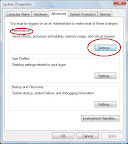
to fix ir right click on "my computer" select "properties" from the menu that appears.. select the "advanced" tab
from the dialog window.. u will see three buttons from that select
under the performance options select the "settings button"

Click on the image to enlarge the image press back button
on ur browser to come back to this page


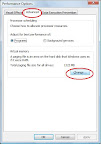
a new window will open select "advanced" tab in that..
select the "change" button from the "virtual memory heading" ..


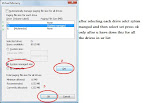
click "system managed size" after selecting each drive in the list do not forget to press the set button after each drive selection .. (this is for guyz who don't want to be bothered for those who want a precise control select the custom button then set ur value 1024 for each drive should keep it pretty neat and tidy and avoids unnecessary fragmentation problems)
finally press ok u will see a warning that says u will need to restart for the settings to take effect press ok and select restart once prompted for if it does not ask just restart ur sytem


the actual appaerence of the dialog boxes vary depending up on the operating s but the procedure still is basically the same look sharp u will find all these buttons and dialogs ...

Thursday, September 27, 2007

win32/ahkheap.a folder picture.

last day when one of my friends rang me up for cleaning his pc i decided to make a pic of his computer so i could post here .. that green icon can be seen in process explorer by the name svchost.exe if u find it on ur pc dont hesitate kill process tree and do as directed in this link

http://dennyphilip.blogspot.com/2007/08/orkut-youtube-bannedfirefox-banned-try.html

here is the culprit


here is a view of the infected folder .. rather the base of operations for the virus/worm...
click on the photo to enlarge


and here is the a bit described version of the same


---------------------------------------------------
posted as an update...
---------------------------------------------------